
Lessons Learned: Entra Conditional Access - Follow the Rules

Locking myself out of everything with the click of a button...

It all started on a normal Tuesday. I was wrapping up my day and was reading through some Microsoft Learn docs. I had recently been piloting the Microsoft Edge Security Baseline, so that was top of mind.
I saw Microsoft Mechanics post a YouTube video about leveraging Edge for Business Protections, and it tickled my security brain enough to want to implement it in my test environment.
Setting the stage for catastrophic failure…
Months prior, I had configured a Conditional Access policy to enforce session controls (via MDCA Session Proxy) on all users accessing all supported apps. My intention was for documentation and testing. The Conditional Access App Control was set to "Monitor Only."
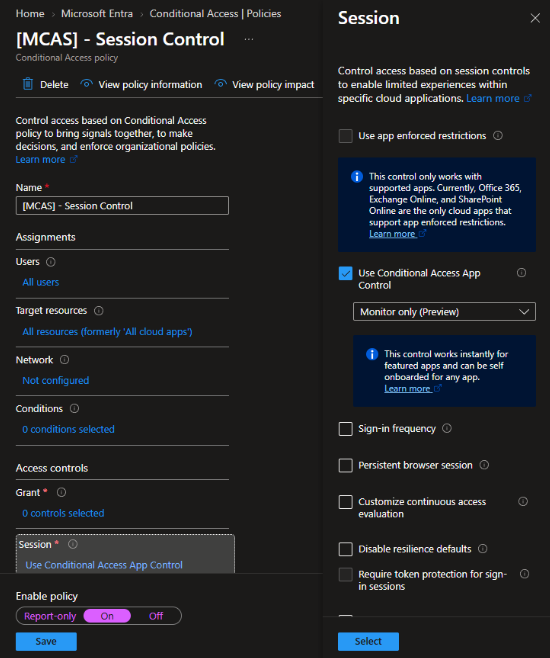
If you're unfamiliar with Conditional Access App Control, this is a session control of Conditional Access that allows your organization to use signals from apps onboarded to Microsoft Defender for Cloud Apps to deliver "deep visibility and control over browser-based sessions through integration with any identity provider (IdP), using powerful access and session policies."
In my case, this CA policy would (depending on the user's browser of choice) redirect users' sessions "via reverse proxy to Defender for Cloud Apps. Those browsers display an *.mcas.ms suffix in the link's URL. For example, if the app URL is myapp.com, the app URL is updated to myapp.com.mcas.ms."
Having dabbled with MDCA Session Control policies in the past, this was no biggie. Log into a Microsoft 365 app, get the user notification (see below), and go on about my business.
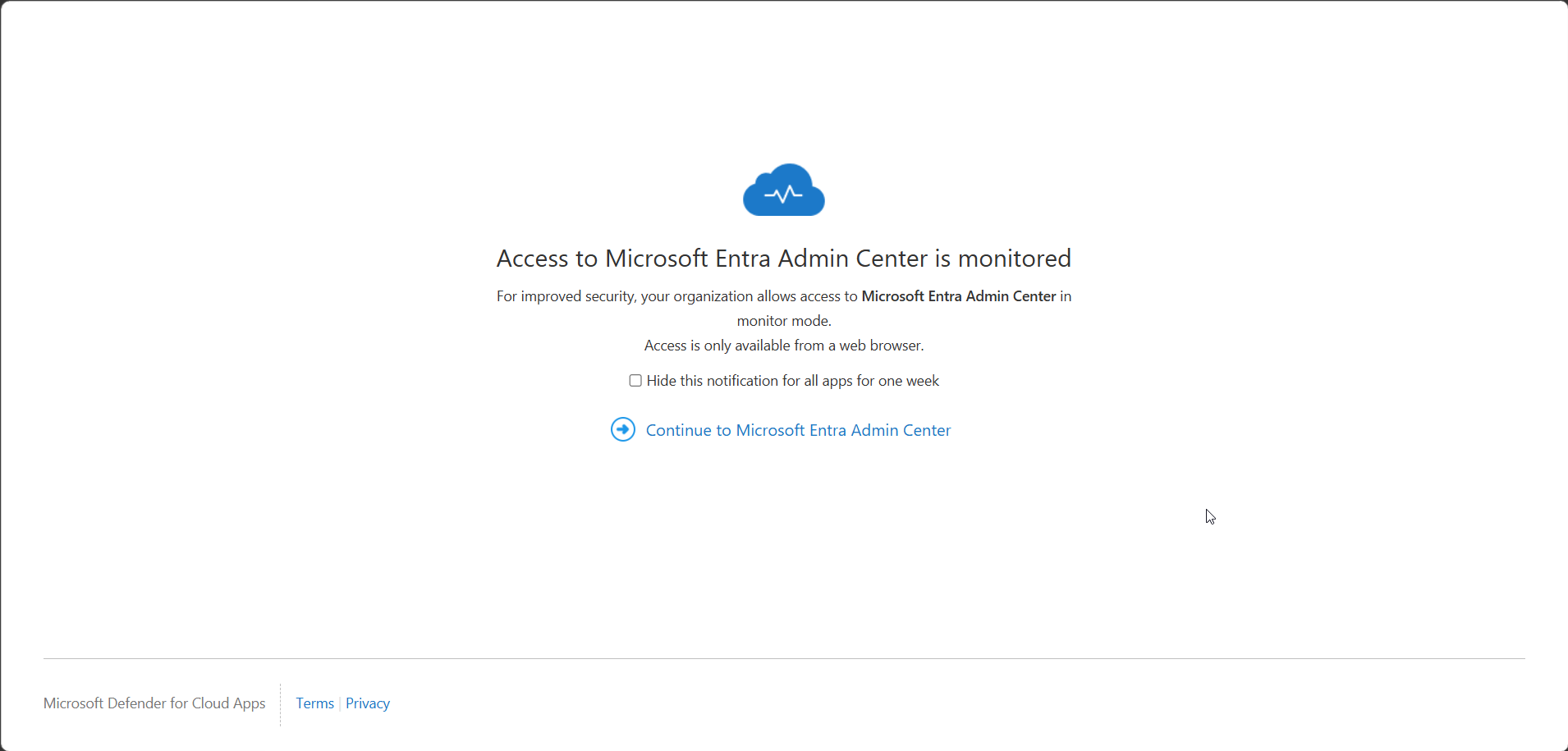
My overconfidence in my Entra experience led to my own downfall, and I excluded absolutely no one from this policy. Not only did I not exclude a user (internal note: emergency access accounts are needed for a reason, genius), I did not make any conditional exclusions for this policy.
Mistake #1. My inner monologue was like "nah, you don't need to exclude anyone. This simply proxies your session over. Hard to get locked out when there isn't a grant control here."
Once I watched the YouTube video a couple of times, I thought, okay, let's knock it out and see what happens.
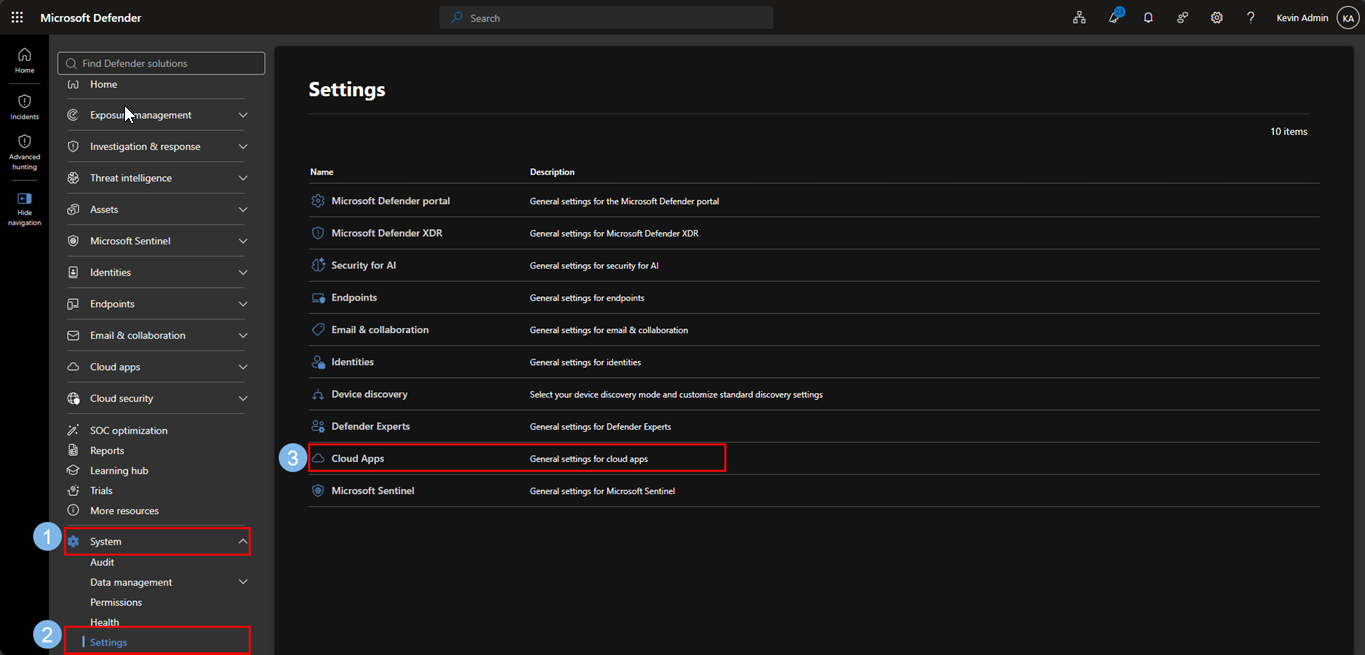
I jumped over to the Defender XDR portal. I then navigated to System → Settings → Cloud Apps → Edge for Business Protection.
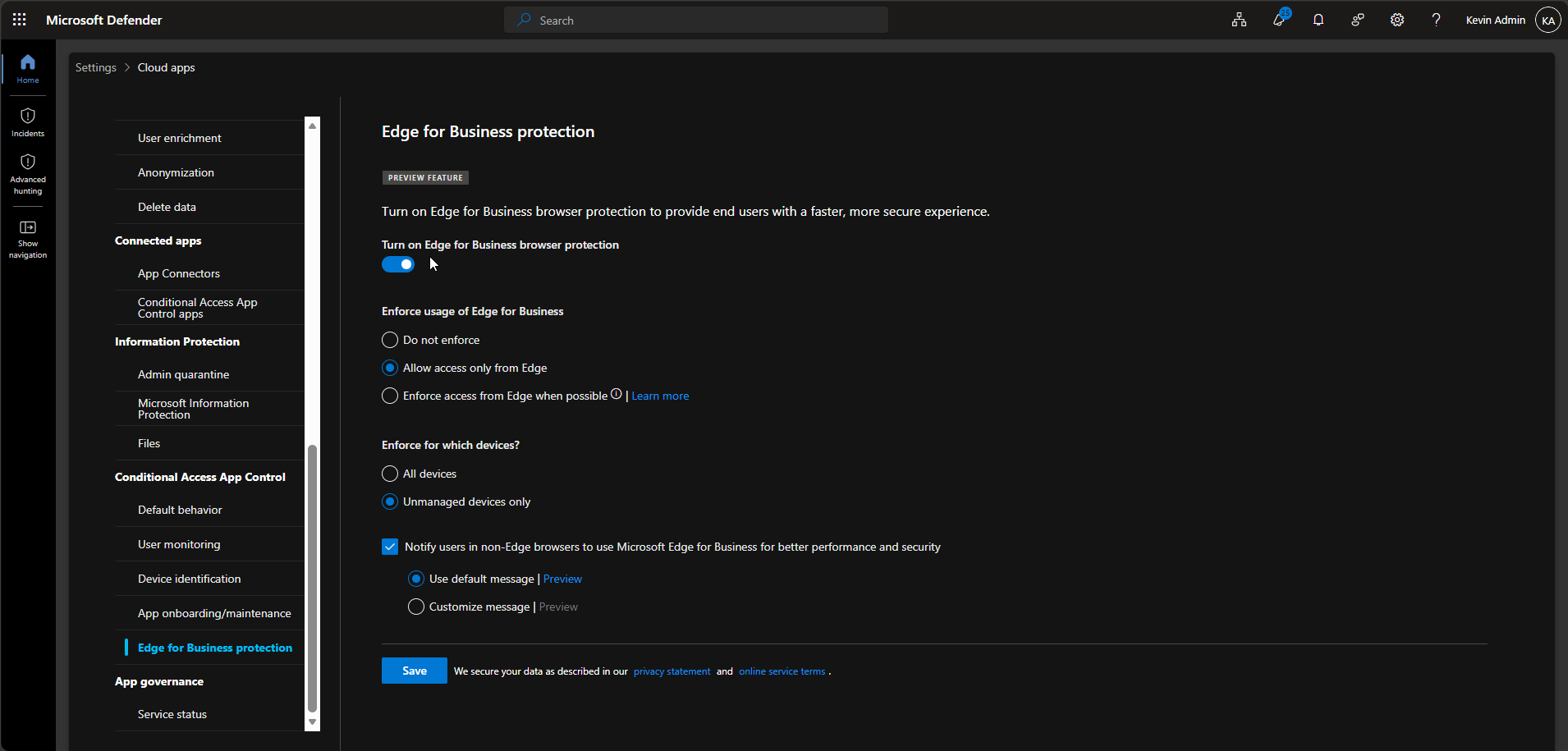
Using the Microsoft Mechanics video as my reference, I configured the Edge for Business Protection blade to "Enforce usage of Edge for Business" set to Allow access only from Edge, and I set "Enforce for which devices?" to Unmanaged devices only.
My thought process:
- The CA policy applies to my Global Admin account, and all I have to do is acknowledge I'm being monitored (by myself) and continue.
- This Edge for Business Protection won't apply to my GA account, because I'll be signing in from a fully managed Intune device.
- This is where I was mistaken. My understanding is that the "Unmanaged devices only" scope only governs the Edge-enforcement layer, whether you're forced into Microsoft Edge specifically. It doesn't gate the underlying CA App Control session proxy itself: my base Conditional Access policy had "Monitor Only" applied with zero device conditions, so every session, managed device or not, was still getting routed through MDCA's reverse proxy regardless of what I'd configured in the Edge for Business Protection blade.
After about 12 hours, I went to sign into a Microsoft 365 admin portal (Entra, Azure, Defender, Purview, etc.)... and lo and behold, my session was proxied to MDCA (as expected), but after clicking "Continue to application," I would get an error.
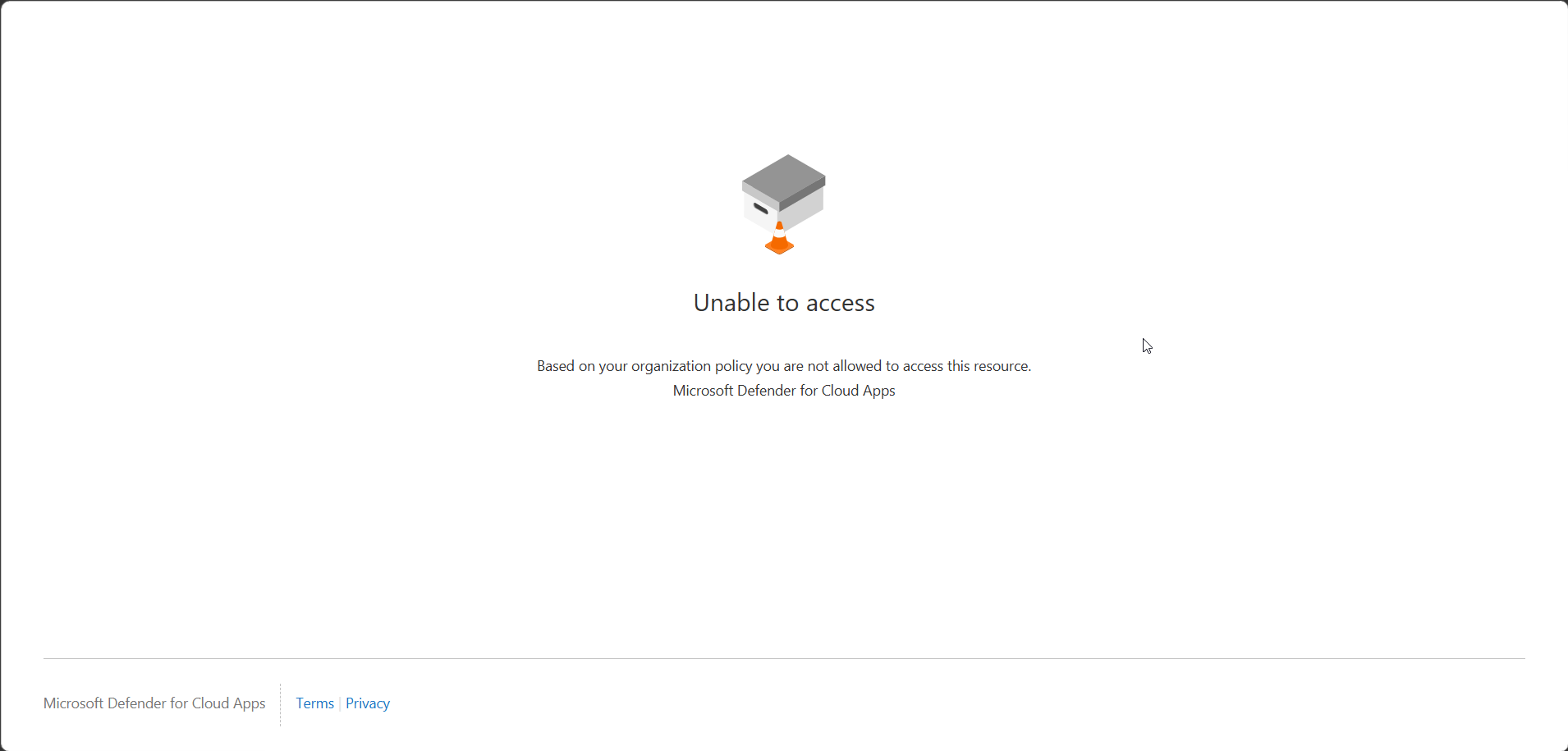
"Ruh-roh, Raggy", we have a major problem. This is my test tenant, where I've spent countless hours building Intune policies and Purview policies and Defender policies to test and document. And now I'm staring at a sign-in loop that throws an error. Panicking, I tried different browsers, same result. I tried an actual unmanaged device, same result.
I thought all hope was lost. But then I remembered my saving grace… Microsoft Graph Explorer. I quickly navigated over to Graph Explorer | Try Microsoft Graph APIs - Microsoft Graph. There I was able to log in using my GA account and establish that connection to my test tenant. With a bit of research and assistance from my buddy Mr. Claude, I was able to call on all my CA policies so that I could reference the ID of the Session Control policy and generate a PATCH command to disable said Conditional Access policy.
Graph query to grab all CA policies (id, Display Name, & State):
GET https://graph.microsoft.com/v1.0/identity/conditionalAccess/policies?$select=id,displayName,state
Graph query to disable a CA policy:
Set the HTTP method to PATCH (dropdown next to the URL bar — it defaults to GET).
URL: https://graph.microsoft.com/v1.0/identity/conditionalAccess/policies/{policyId}
Replace {policyId} with the actual GUID of the policy.
Request body (paste into the "Request body" tab, not the query params):
{
  "state": "disabled"
}
NOTE: You'll need to be signed in with an account that holds Conditional Access Administrator or Security Administrator, and Graph Explorer needs consent for
Policy.ReadWrite.ConditionalAccess(check under the "Modify permissions" tab if you get a 403, as Graph Explorer's default consented scopes usually don't include this one — you'll likely need to consent to it interactively the first time). If you're also pulling the policy list via theGETabove, make surePolicy.Read.Allis consented too.If you'd rather not fully disable it, swap the value to
"enabledForReportingButNotEnforced"to keep it in report-only mode instead.
After about 5 minutes, I was able to log back in.
So what did we learn?
Always, and I mean always, no matter your comfort level or experience, exclude your emergency access accounts from your Conditional Access policies. As an added bonus, ensure you lock down your emergency access accounts by following the guidance listed here: Manage emergency access admin accounts - Microsoft Entra ID | Microsoft Learn
Thanks for reading! Drop a comment for topics you'd like to see covered or your thoughts on my lazy mistake.