
Don’t Let Your Exclusions Ghost You: Conditional Access Policy Plans


A haunting in the Policies blade
It's late. You open the Conditional Access blade in a tenant you inherited. Forty something policies scroll past. Four of them are nearly identical: Require compliant device: Windows, macOS, iOS, Android.
Now a scary question. How many of those policies have your break-glass account(s)/group in the exclude list? Not "most of them." All of them?
One missed exclusion is all it takes to lock the keys inside the castle. And every new policy is one more chance to forget it.
Microsoft just put something in preview that goes straight at this problem: Conditional Access policy plans. You define targeting and exclusions once, then build individual rules on top of them. In this post I'll cover how plans work, the three ways to build one, the preview caveats, and my take from the field.
Preview: Conditional Access policy plans are in public preview. Test in a lab or with a pilot group first.
What's lurking: policy plans in one breath
A policy plan groups related rules under one set of shared assignments and conditions. You set the common targeting and exclusions once and each rule handles one specific scenario. Microsoft frames a plan around a single security objective, such as "require compliant devices" or "secure agent activity."
The most important thing to know up front is that plans add to the Conditional Access model; they don't replace it. Your existing policies keep working exactly as they do today and nothing breaks when this feature shows up in your tenant.
Why Microsoft summoned this
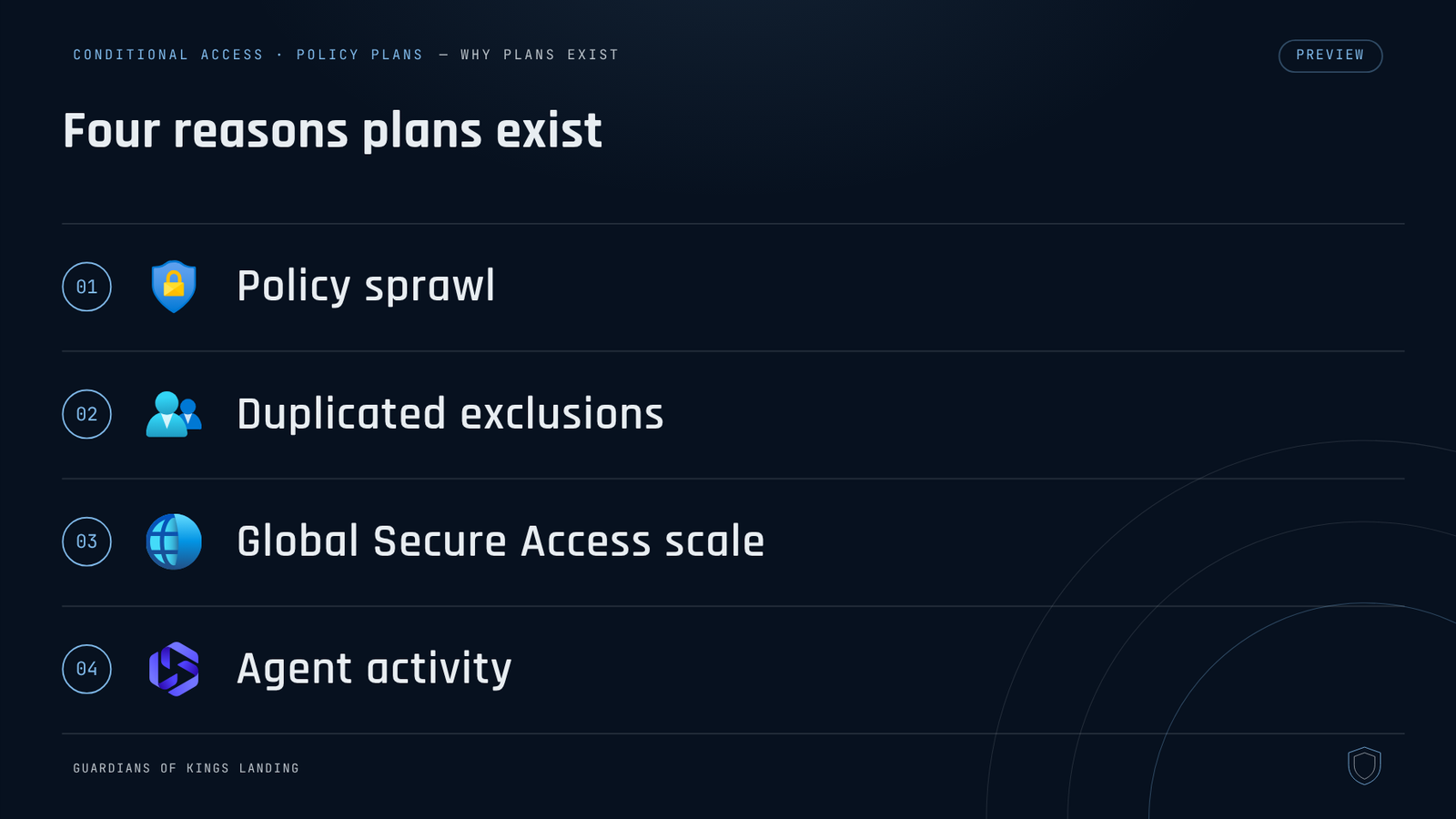
Microsoft gives four reasons for plans:
- Policy sprawl. The classic example is four compliant-device policies, one per platform, each with the same users and the same break-glass exclusions. Change the targeting and you're editing four policies. In a plan, that shared targeting lives in one place.
- Duplicated exclusions. Break-glass accounts/groups, service accounts and privileged workstations show up in exclusion lists everywhere. Microsoft's own docs say missed exclusions are a common source of unintended lockouts. Put them at the plan level and no rule can forget them.
- Global Secure Access at scale. If you're deploying GSA, you can end up with hundreds of network-scoped rules hitting the same users and apps. A plan lets each rule focus only on its network scope.
- Agent activity. Agents can act with their own permissions or on behalf of a user. A plan can hold a shared condition like high agent risk, with one rule for agent users and another for autonomous agents. Without a plan, each of those is a standalone policy that repeats the condition.
Anatomy of the beast
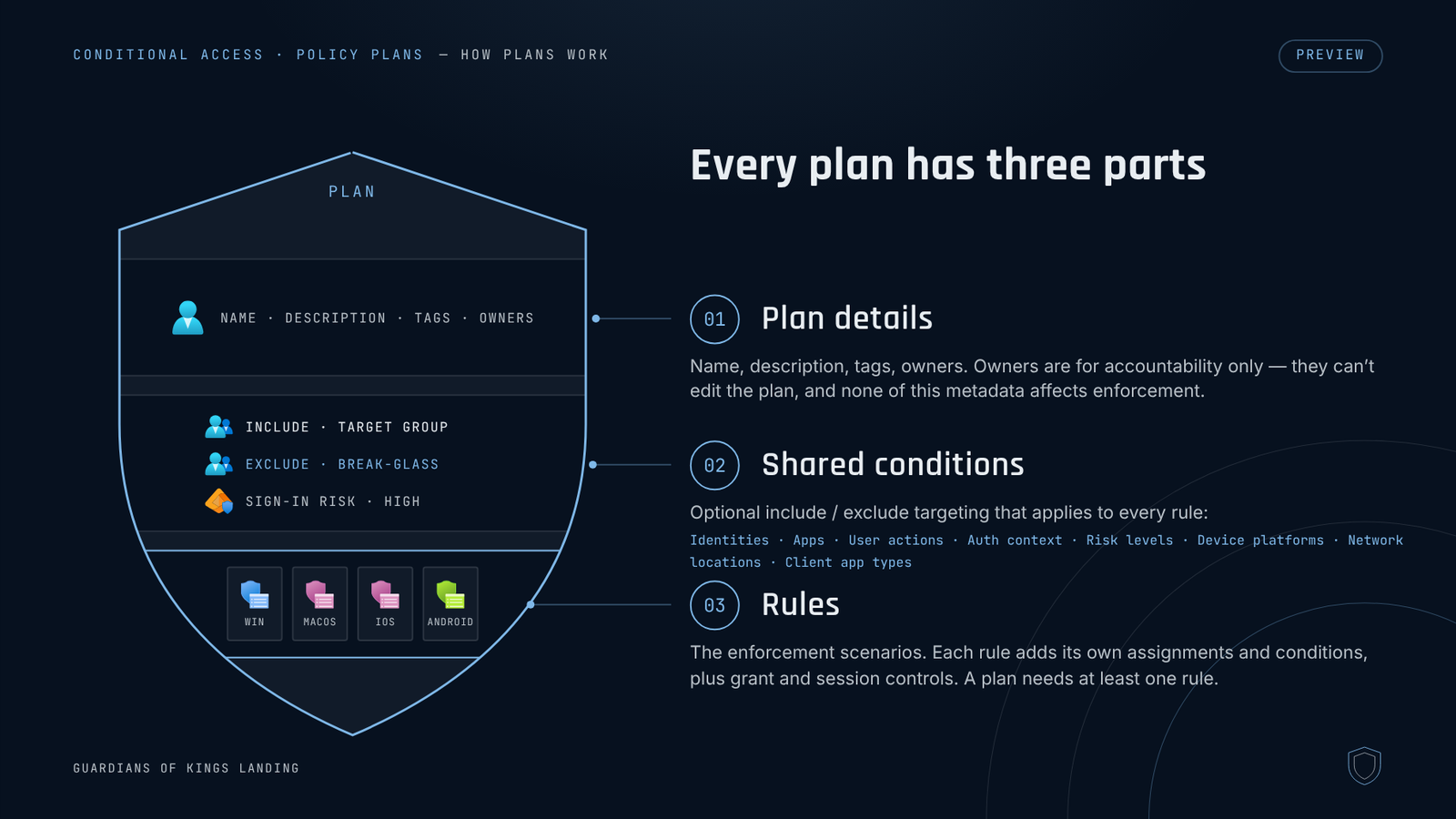
Every plan has three parts.
- Plan details: the plan’s identity card, with a name, description, tags and owners. The owner field records who’s accountable for the plan; it doesn’t grant edit rights. Nothing in this section changes how sign-ins are evaluated.
- Shared conditions: the common ground every rule inherits. This optional include/exclude targeting can cover identities, apps, user actions, authentication context, risk levels, device platforms, network locations and client app types.
- Rules: where enforcement actually happens. Each rule adds the assignments and conditions for its own scenario, plus the grant and session controls it enforces. Every plan must have at least one rule.
The rules of the crypt (inheritance)
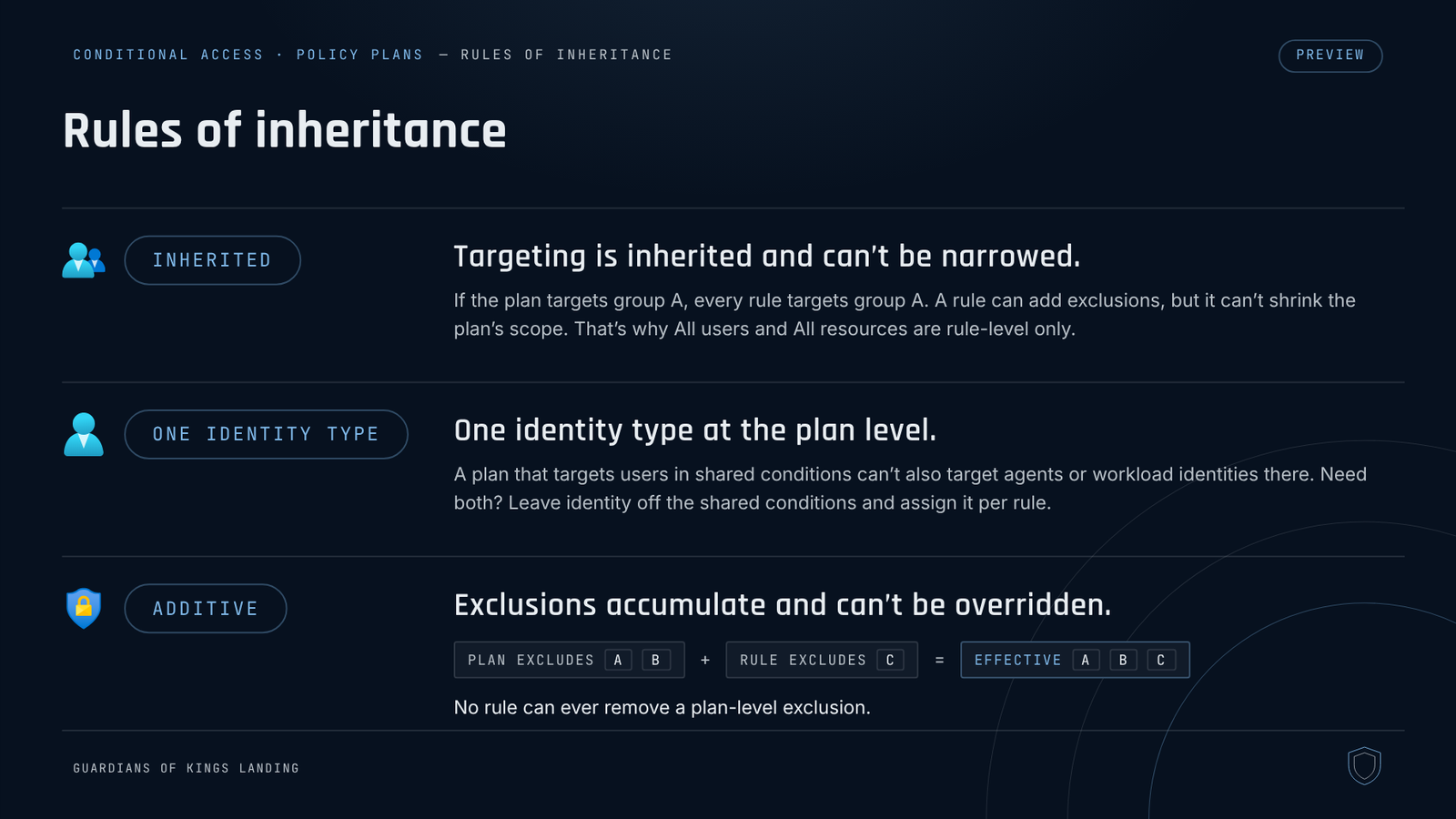
This is the part you need to get right because shared conditions and rule conditions combine additively.
- Rules inherit the plan’s scope and can’t shrink it. If the plan points at group A, so does every rule under it. A rule can add exclusions of its own, but it can’t pull back the plan’s targeting.
- All users and All resources are only available on rules. Shared conditions don’t offer either one. That’s by design: if the plan targeted All users, no rule could ever scope down from it.
- Shared conditions take one identity type. If the plan targets users at the shared level, agents and workload identities can’t sit there too. To cover both in one plan, leave identity out of shared conditions and set it in each rule.
- Exclusions stack, and the plan’s are permanent. If the plan excludes groups A and B and a rule adds C, all three are excluded for that rule. A plan-level exclusion can’t be removed by any rule.
That last point is the headline safety win. It turns "please remember the break-glass group" into "the break-glass group is structurally impossible to forget," at least inside the plan.
When the ghosts are judged: runtime evaluation
At sign-in, Conditional Access merges each rule's conditions with the plan's shared conditions. It then evaluates that rule as its own independent decision, exactly like a standalone policy. Each rule shows up as its own entry in the sign-in logs.
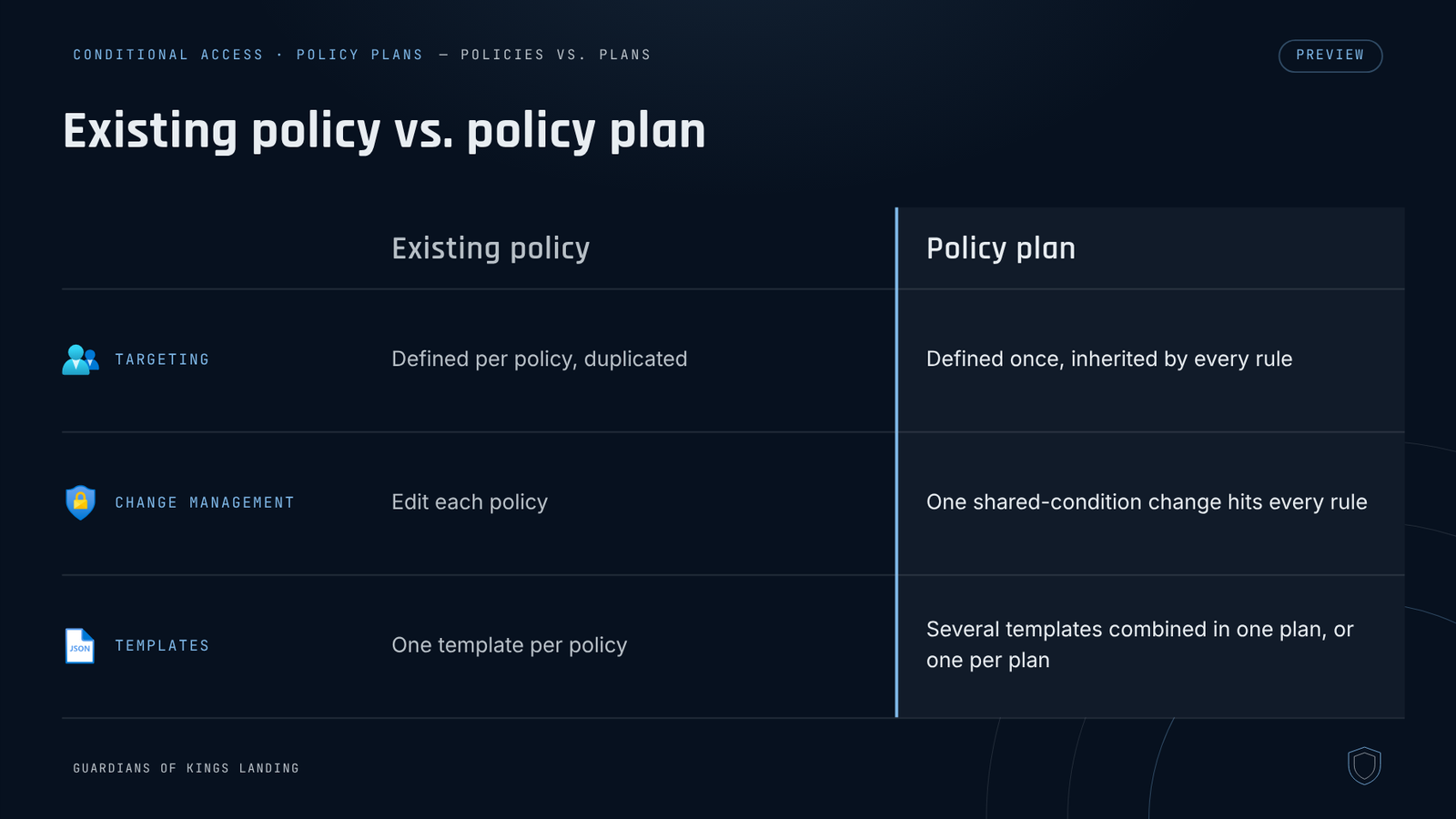
How do plans and your existing policies interact? They don't. There's no precedence and no override. The engine evaluates every applicable policy and every applicable rule and all of them must be satisfied for access to be granted. Keep that in mind when we get to migration.
Three ways to raise a plan
Everything below lives at Entra admin center → Entra ID → Conditional Access → Policy plans (Preview), signed in as at least a Conditional Access Administrator.
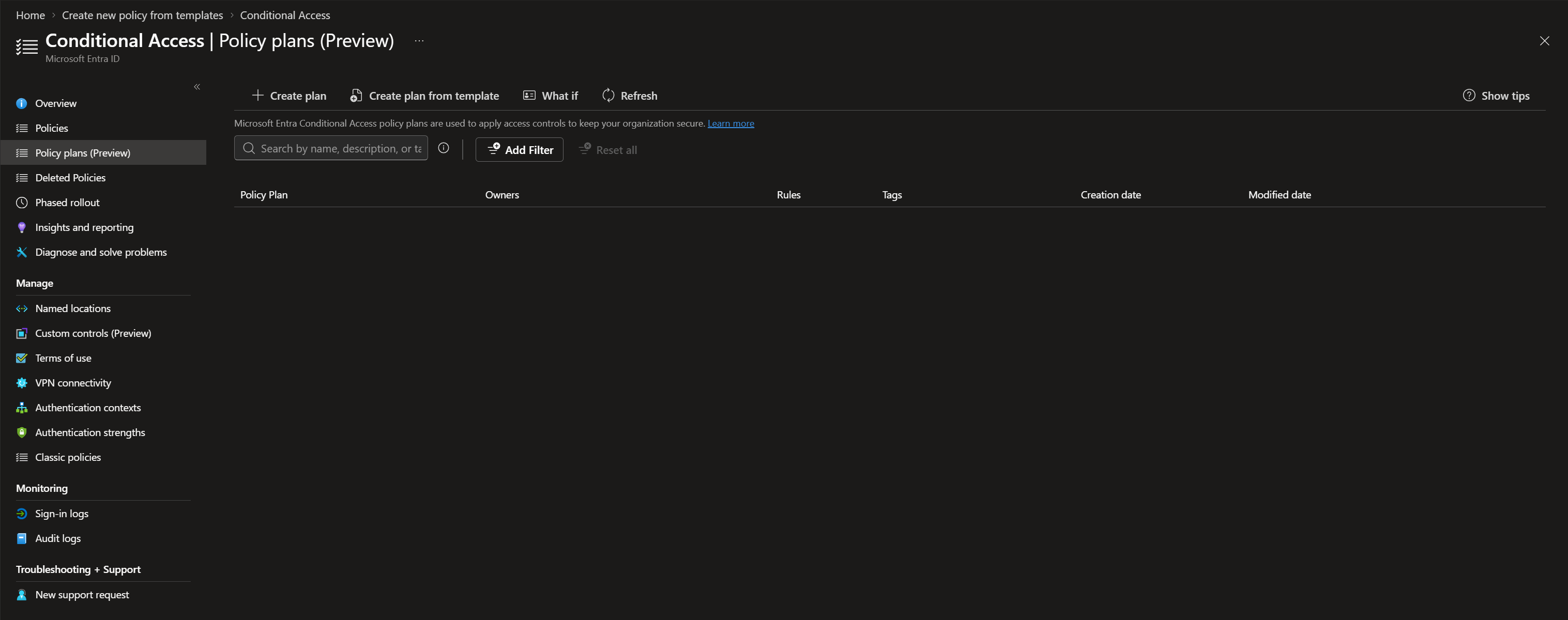
1. From a template
Templates create the plan, its shared conditions and one or more rules in a single flow. That includes templates for securing agent activity.
- Select Create policy from template.
- Pick one or more templates with Use template, then Create plan. You can stack several templates into one plan.
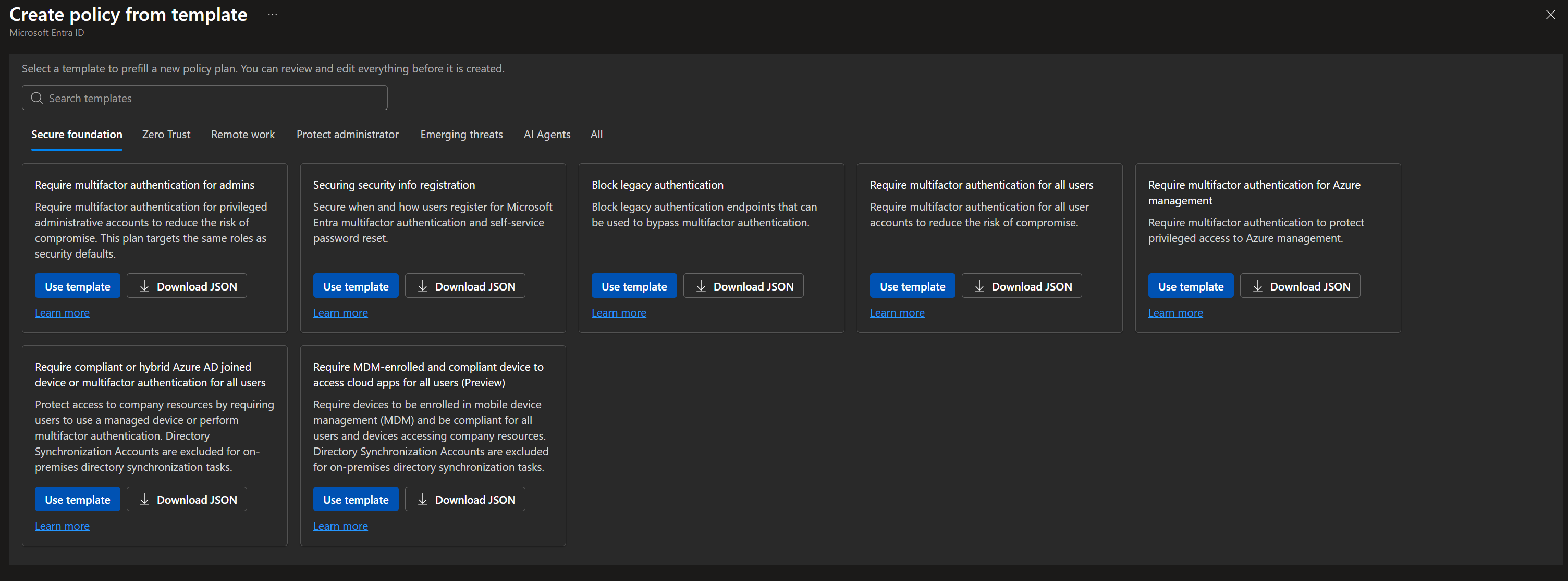
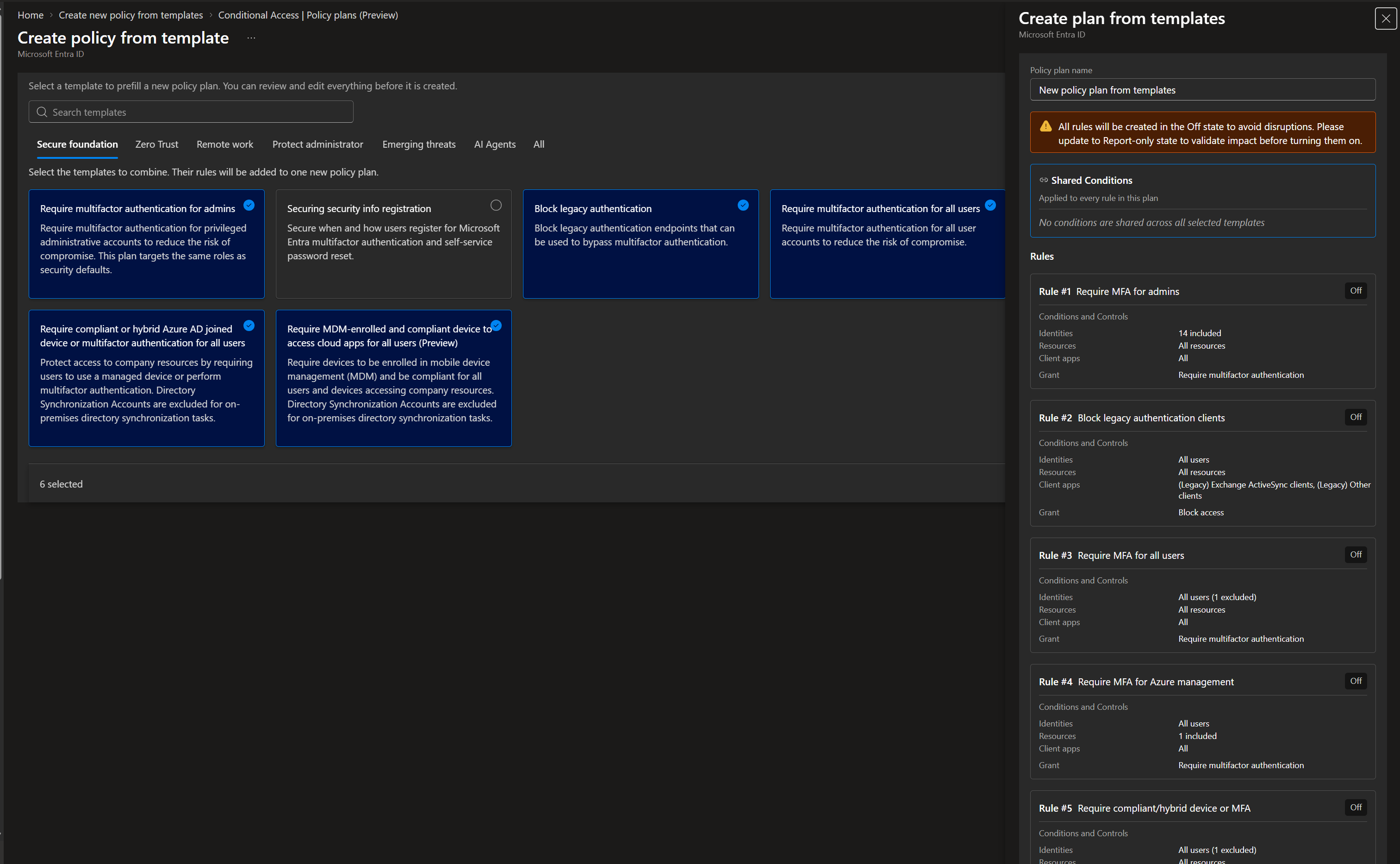
- Review the prepopulated shared conditions and select Create policy plan.
- Note that every rule a template generates starts Off. Microsoft deliberately doesn't let a template touch your users on day one.
- Select Edit plan → Add Users → Exclude and add your break-glass accounts and service accounts. Templates don't know your break-glass accounts so do this first.
- Review each rule's name, conditions and grant controls, then move each rule from Off to Report-only.
2. Custom, from scratch
Use this when no template fits or you want full control. In this example we'll use the four-platform compliant-device scenario.
- Select Create policy. Enter a name, description and tags. You're auto-added as an owner, add your team for accountability.
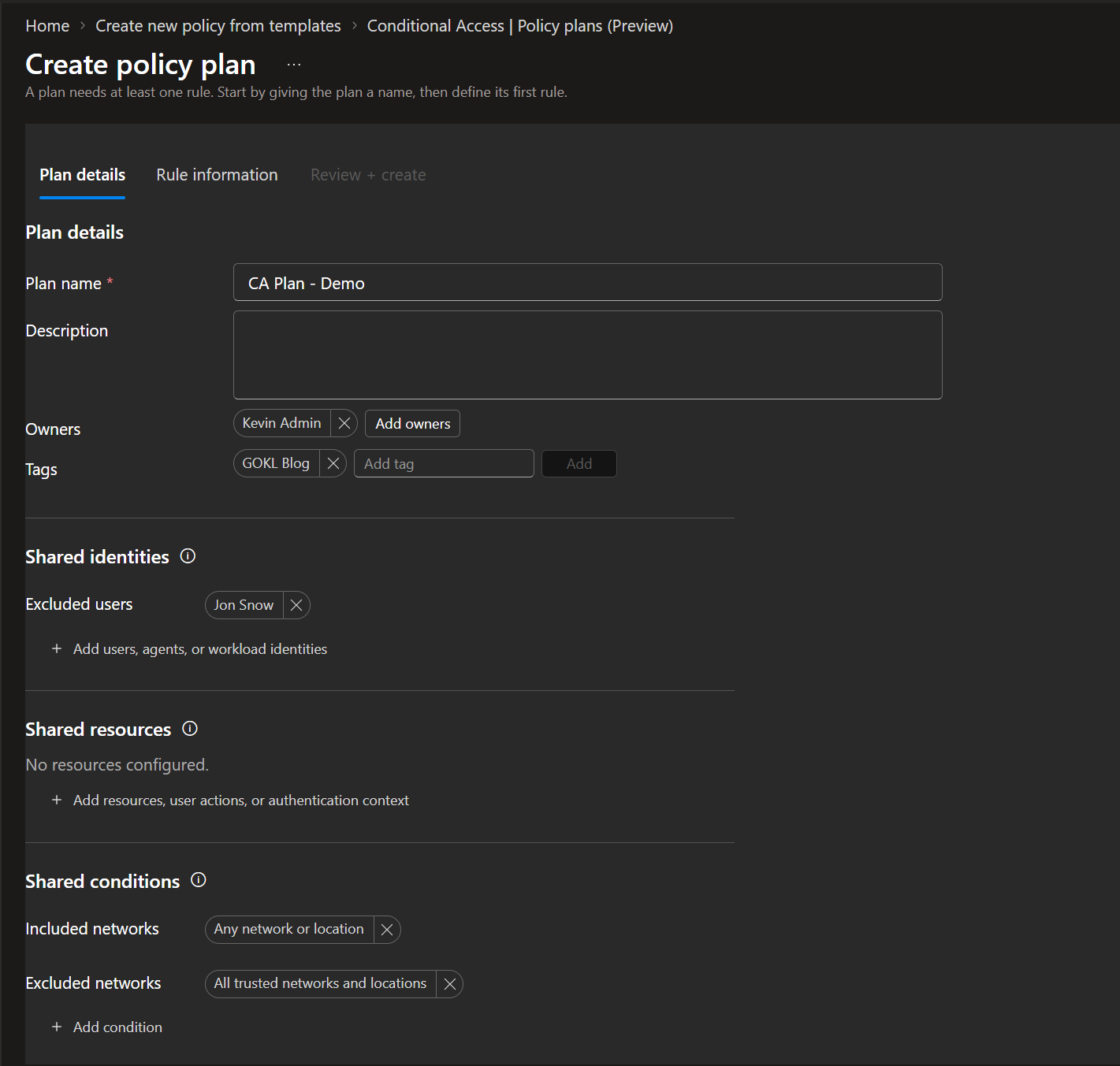
- Shared conditions: include the target user group (All users is greyed out here) and exclude break-glass and service accounts. Optionally scope shared apps, risk, platforms, locations or client app types.
- Select Continue to add the first rule. Name it, set State = Report-only, set the device platform to Windows and set the grant to require compliant device.
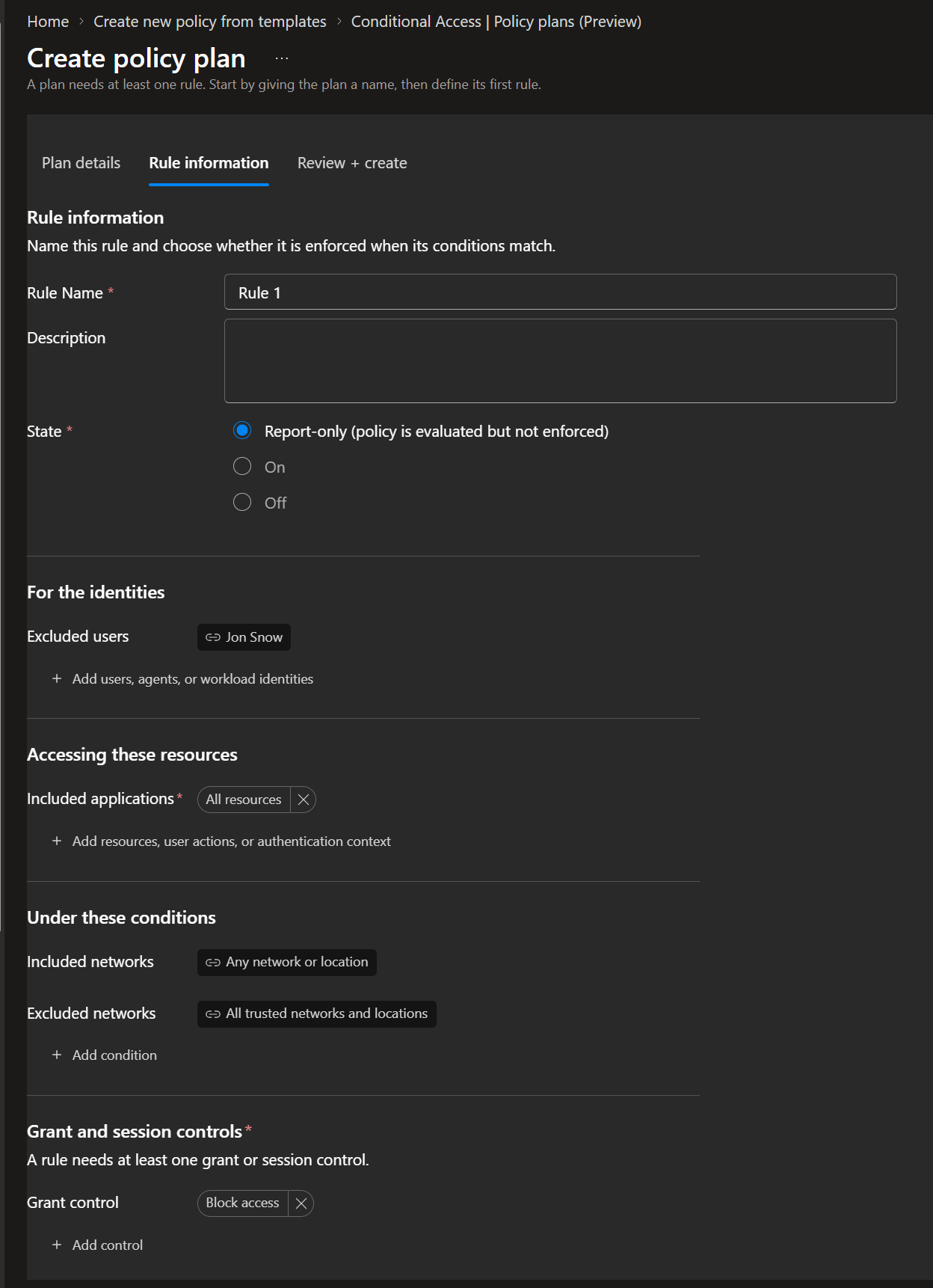
- If the rule should cover everything, choose All resources at the rule level.
- Select Create, then repeat for macOS, iOS and Android.
That gives you four rules and one set of exclusions, which is the whole pitch in practice.
3. Migrate the policies you already have
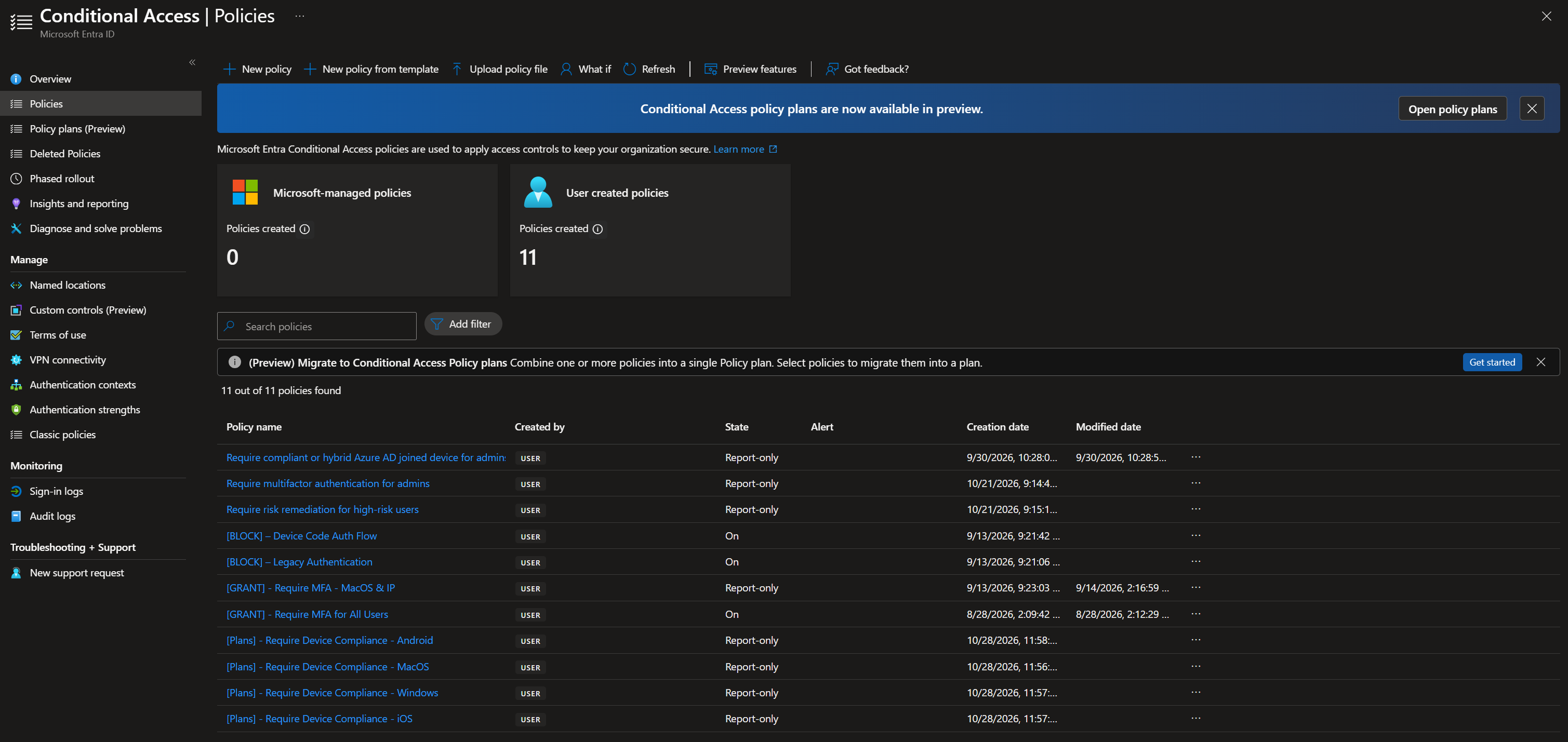
Go to Conditional Access → Policies, find the Migrate to Conditional Access Policy plans (Preview) banner, and select Get started.
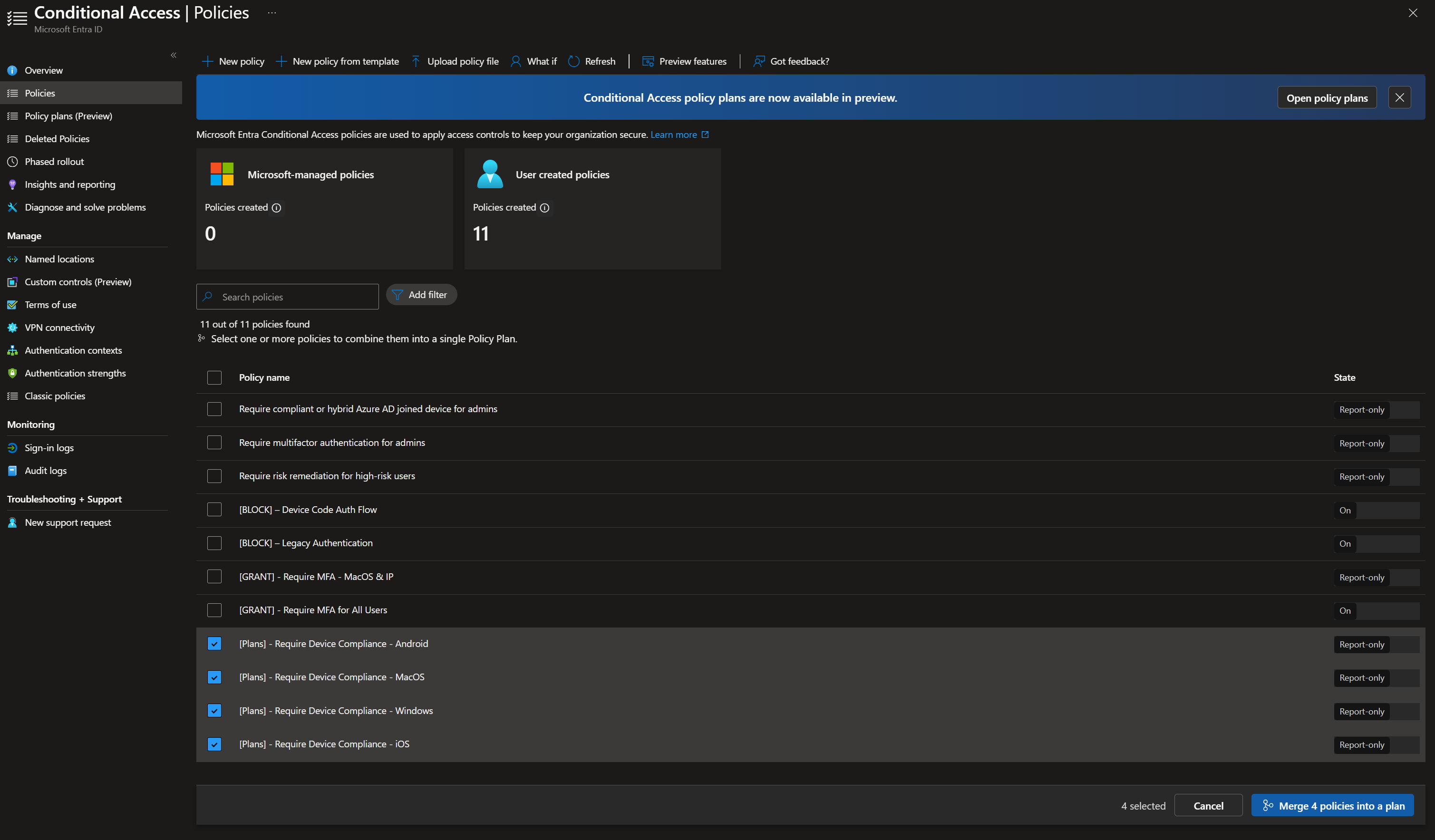
- Select the policies that share a common intent, then Merge policies into a plan.
- The tool analyzes them. Anything they have in common becomes shared conditions, and each original policy maps to a rule that keeps its unique settings.
- Select Create policy plan. As with templates, every migrated rule starts Off.
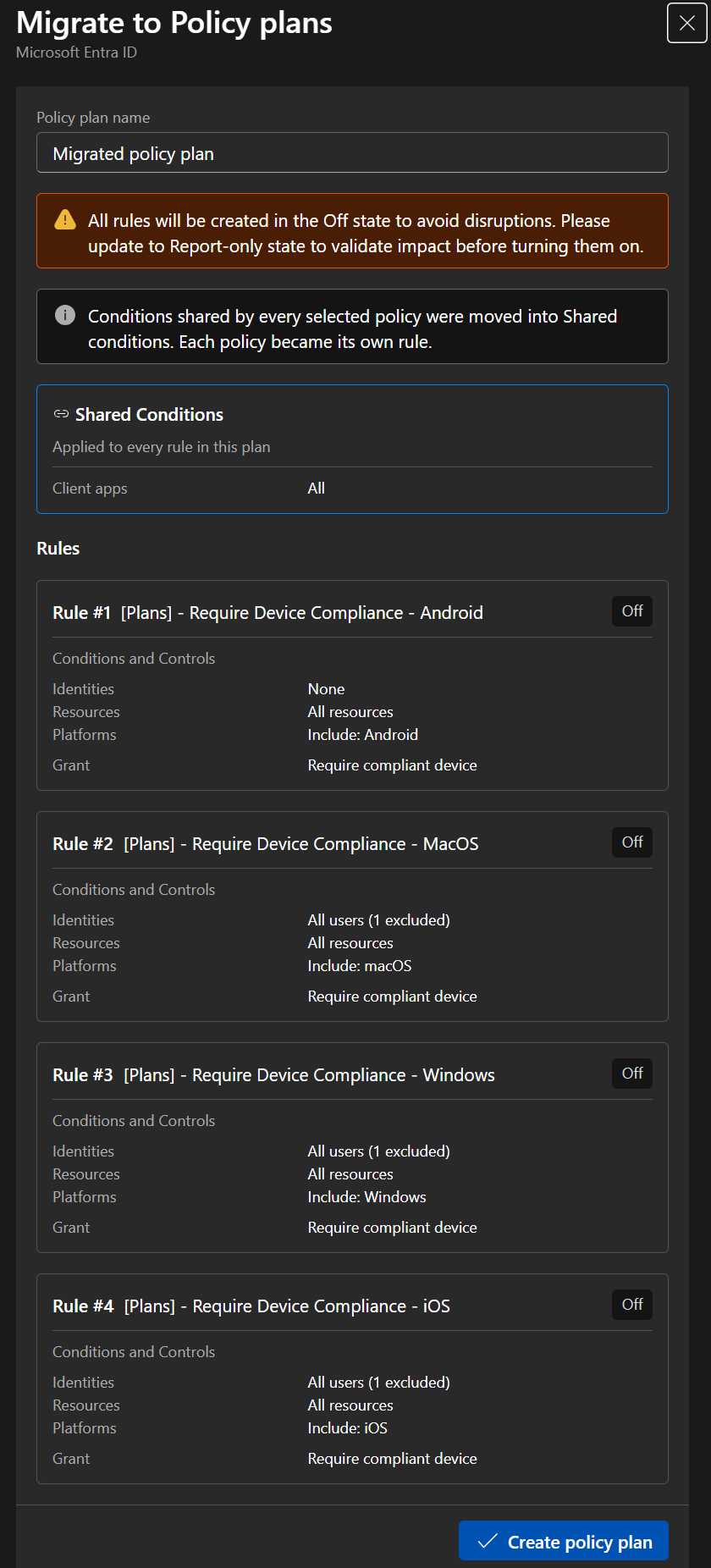
- Your original policies are untouched. If they were On, they're still On and still enforcing.
Microsoft's guidance for choosing what to migrate is to group by protected resource, by persona, or by a shared condition (sign-in risk, platform, location). Migrate incrementally, starting with a small, well-understood set.
Validate, then cut over
- Put the plan rules in Report-only. Use the built-in policy impact view or Monitoring & health → Sign-in logs to confirm each rule matches the right users, apps and conditions.
- Compare the results against the original policies. They should be equivalent.
- Turn the plan rules On, turn the original policies Off, and confirm sign-in behavior holds.
- Delete the originals only after your validation window and only when your change-management and retention requirements allow it.
Before you open the crypt
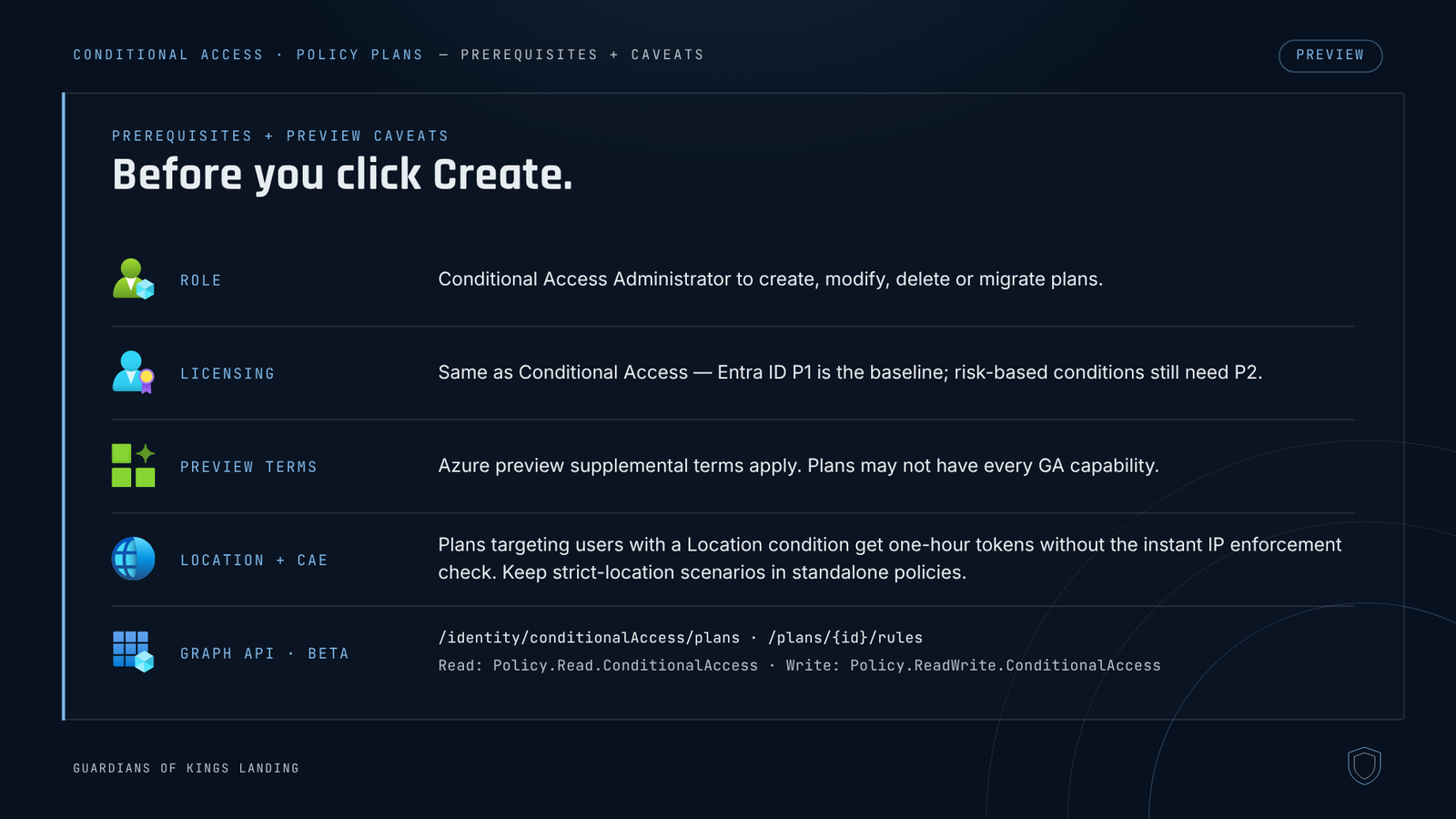
- Role: Conditional Access Administrator to create, modify, delete or migrate plans.
- Licensing: the same as Conditional Access (see the license requirements). Entra ID P1 is the baseline, and risk-based conditions still need P2.
- Preview terms: plans may not have every GA capability yet.
- Location + CAE gotcha: during preview, plans that target users with a Location condition get one-hour access tokens without the instant IP enforcement check (named location limitations).
- Graph API (beta): plans live at
/identity/conditionalAccess/plans, with rules under/plans/{id}/rules.
GET https://graph.microsoft.com/beta/identity/conditionalAccess/plans
Reading needs Policy.Read.ConditionalAccess and writing needs Policy.ReadWrite.ConditionalAccess. Because it's beta, don't build production automation on it yet, but it's useful for exporting and documenting. The plan object also carries a templateId (set when a plan came from a Microsoft template) and a version that the service increments on every update, which helps with change tracking.
From the field: what I'd tell a client
Here's where I put the docs down and give you my take.
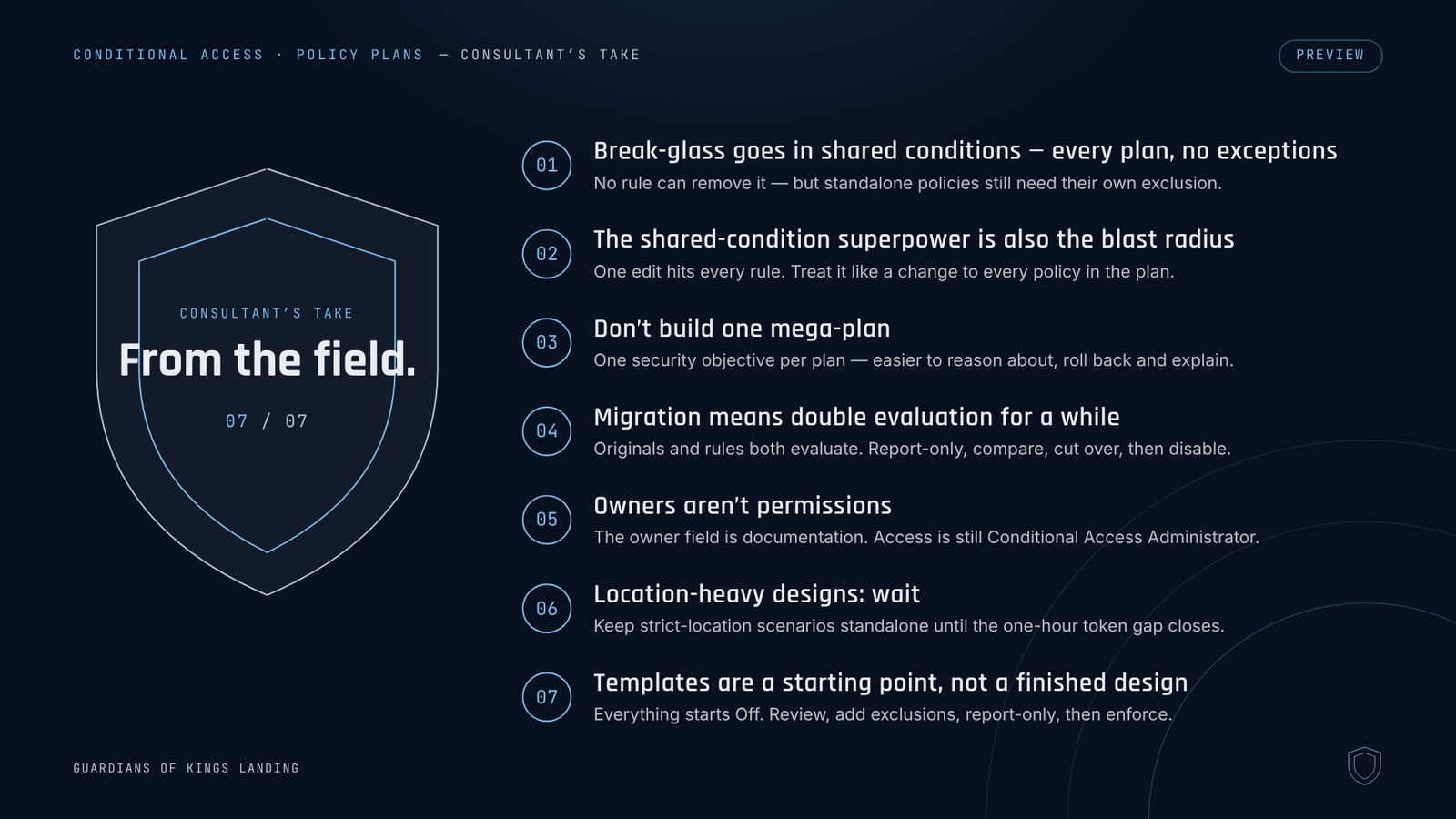
- Break-glass goes in shared conditions, in every plan, no exceptions. I exclude break-glass accounts from every CA policy, not just the ones that block or restrict sign-in. That's stricter than Microsoft's guidance and it comes from real outages. Plans finally make that enforceable by design. But it only protects what's inside the plan, so your standalone policies still need their own exclusion.
- The shared-condition superpower is also the blast radius. One change propagates to every rule. That's great when you're adding an exclusion and not great when someone tightens an include and quietly shifts the scope of ten rules. Treat a shared-condition edit like a change to every policy in the plan, because it is one.
- Don't build one mega-plan. Give each plan one security objective: compliant devices, risk, GSA or agents. Small plans are easier to reason about, roll back and explain.
- Migration means double evaluation for a while. The originals and the plan rules both evaluate, and both must pass. Migrate one group at a time: report-only, compare, cut over, disable. Don't leave both enforced for months or you'll have two sources of truth.
- Owners aren't permissions. The owner field is documentation. Access control is still the Conditional Access Administrator role.
- Location-heavy designs should wait. Until the one-hour token gap closes, I'd keep strict-location scenarios in standalone policies.
- Templates are a starting point, not a finished design. Everything starts Off for a reason. Review every rule, add your exclusions, run in report-only, then enforce.
Recap before the candles burn out
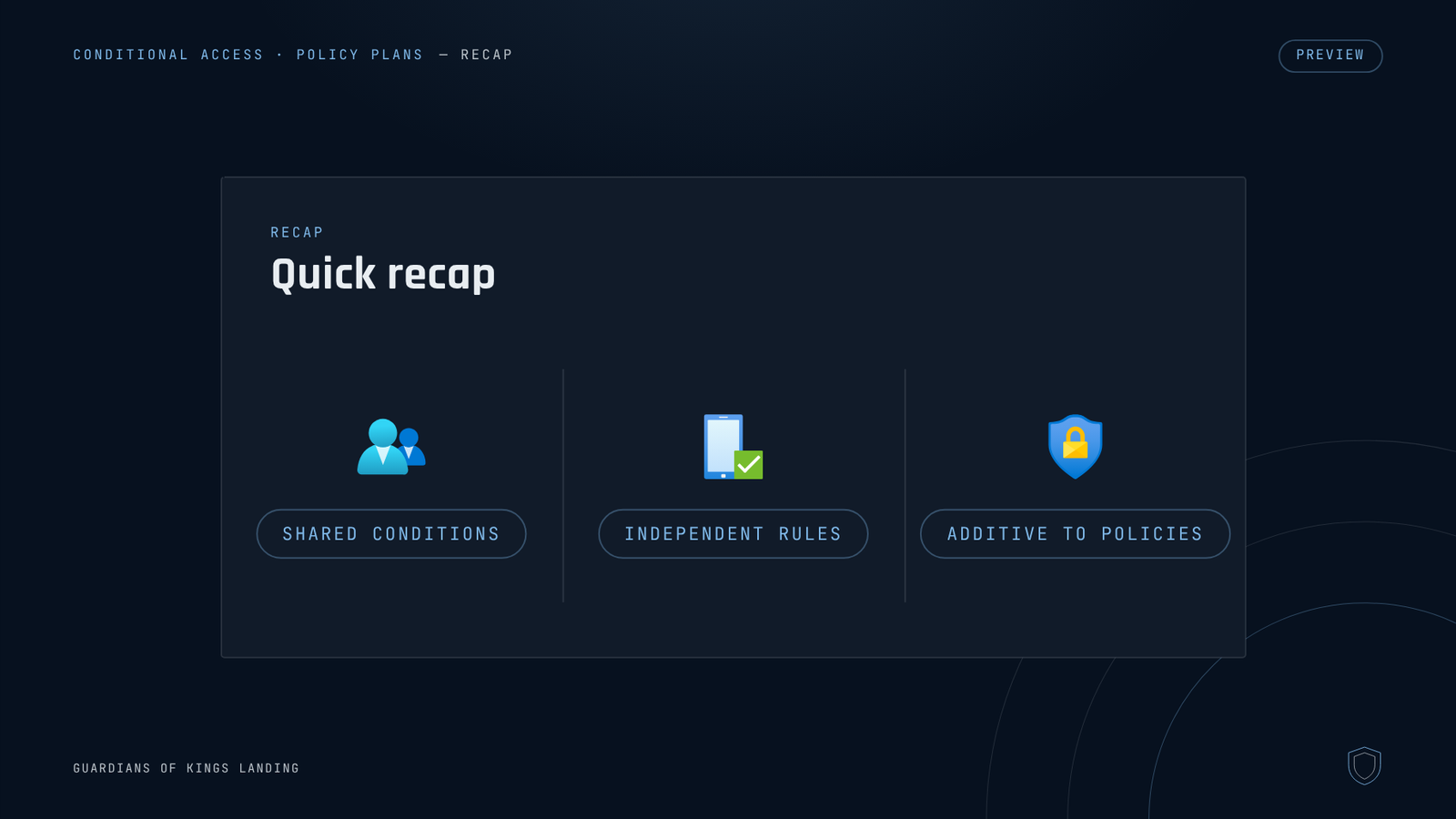
- A policy plan is plan details + shared conditions + rules.
- Shared targeting and exclusions are defined once and can't be overridden by a rule.
- Plans are additive to your existing policies. Everything evaluates independently, and everything has to pass.
- Build from a template, from scratch, or by migrating, and always land in report-only first.
It's preview, so try it in a lab or a pilot group before production. If you've been following the CA 101 series on the YouTube channel, this one builds right on top of it.
Thanks for reading. I really appreciate every one of you who takes the time to stop by, share these posts, and send questions my way. That’s what keeps this blog going.
And yes, I was going for a Halloween vibe this time :D. I hope the spooky headings made a preview feature a little more fun to read about.
Happy Halloween, and may your exclusion lists never come back to haunt you. Guard the realm. 🛡️
Stay vigilant out there.
— Kevin